

1 · Compose the document
What you are doing. Turning data you have into a real, rendered, hashed document that a person can sign. The Typewriter is not a template engine with a text box. Each of the 146 document types is a declared schema, the form is generated from that schema, and the preview on the right is the actual rendered document rather than an approximation of it.Open the Typewriter
Click Typewriter in the left rail, or the Typewriter chip under Apps on the landing. You land on Documents, one row per document, newest first. Click New document, top right or in the sub-nav.
The chevron at the start of a row expands its version history: every version, the PDF it was
signed as, and what happened when that version went to the Clerk.
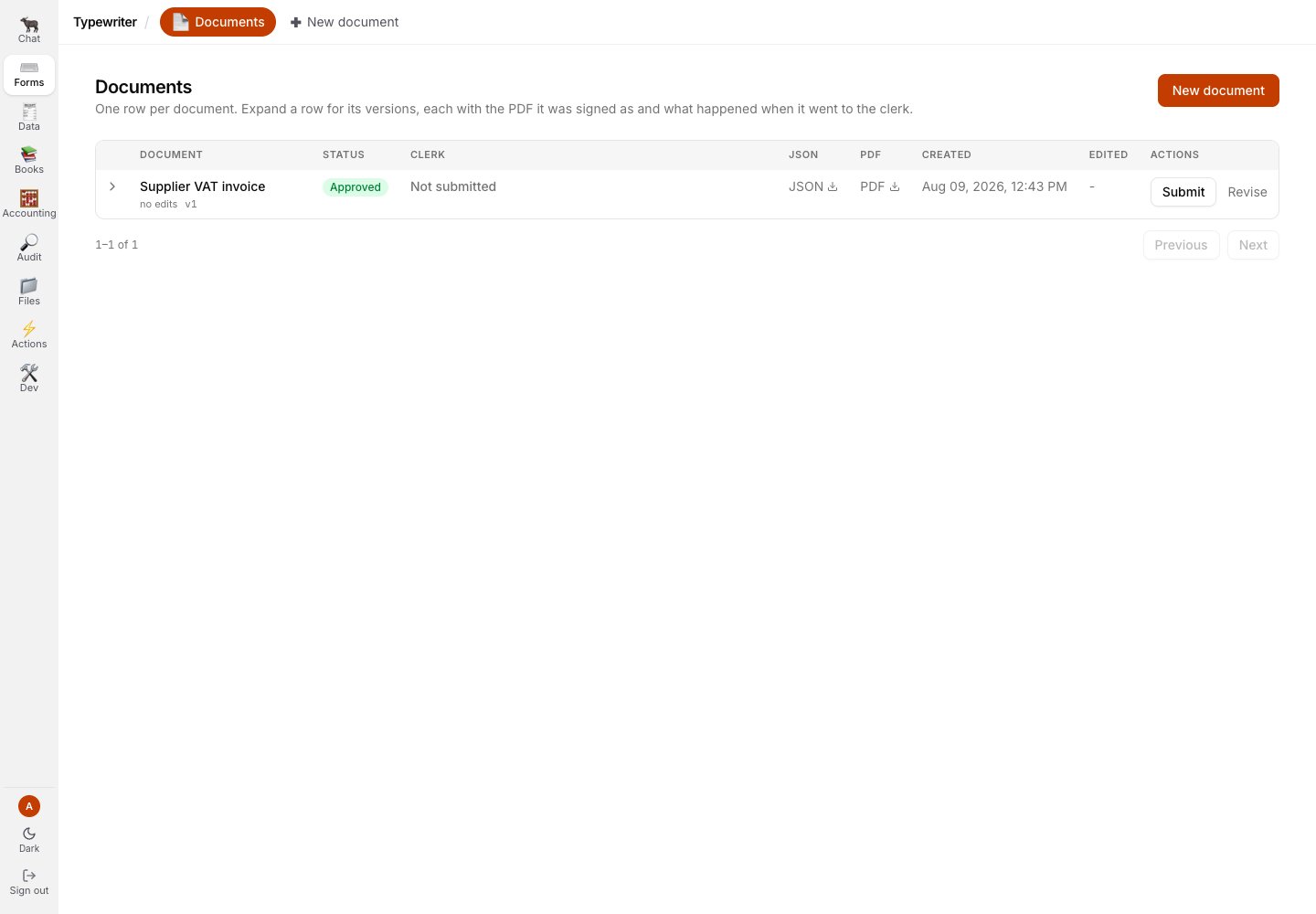
An approved document remains visible as a row of record, with handoff still a separate action.
Resubmit is not a second submission.
A document already handed over shows Already in review … resolved to the existing intake row: the
handoff is idempotent, so pressing it again lands you back on the row you already created rather
than creating a duplicate.
Pick a document type
All 146 document types are here, numbered and named in Vietnamese with the machine key underneath (supplier_vat_invoice, proof_of_delivery, and so on).
The counter on the right tells you how many match your filter.
Search matches the Vietnamese name, the key and the number.
Typing hoá đơn narrows 146 to 17; typing #42 jumps straight to one.
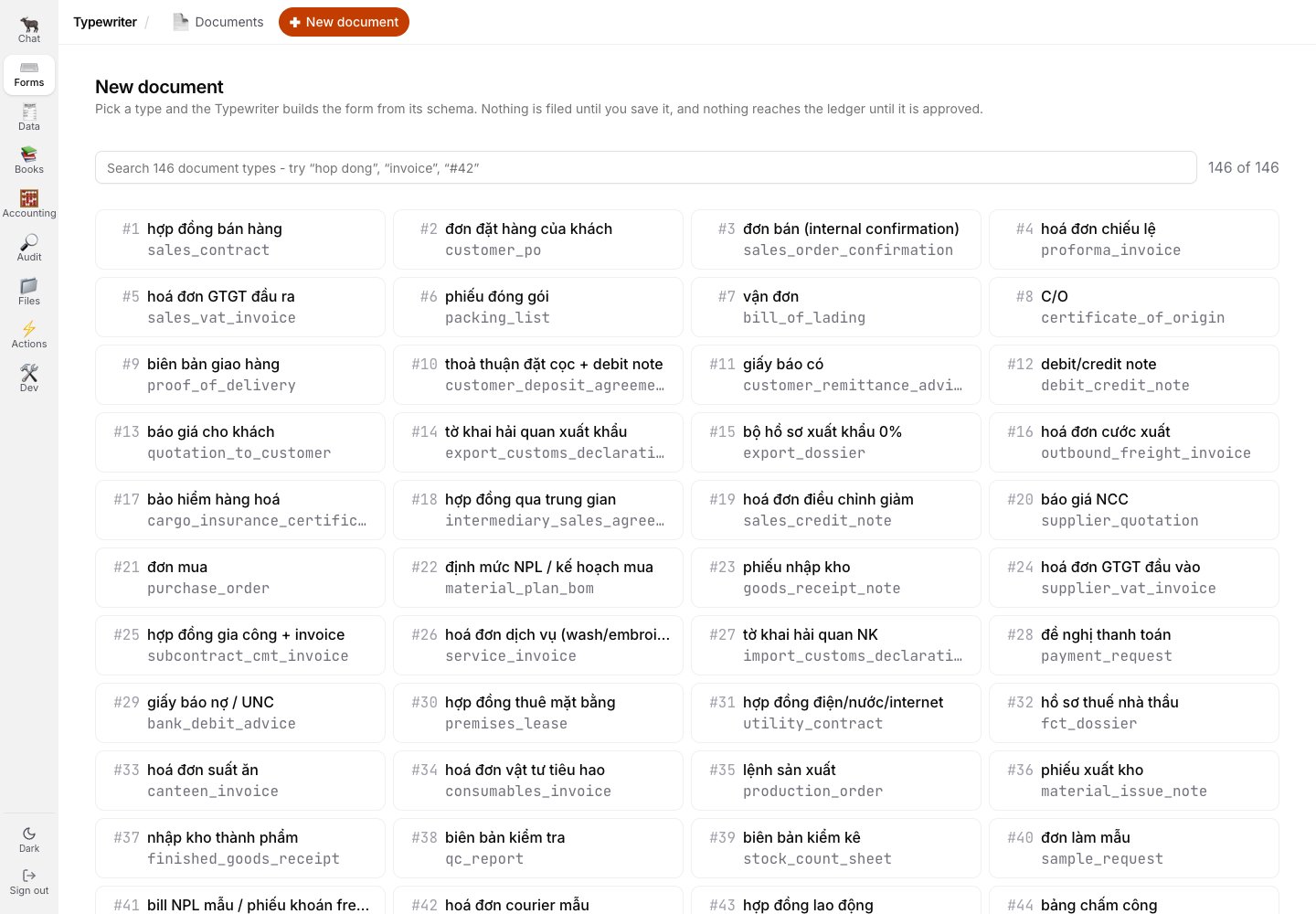
146 of 146. The list comes from the schema, so it is never out of date.
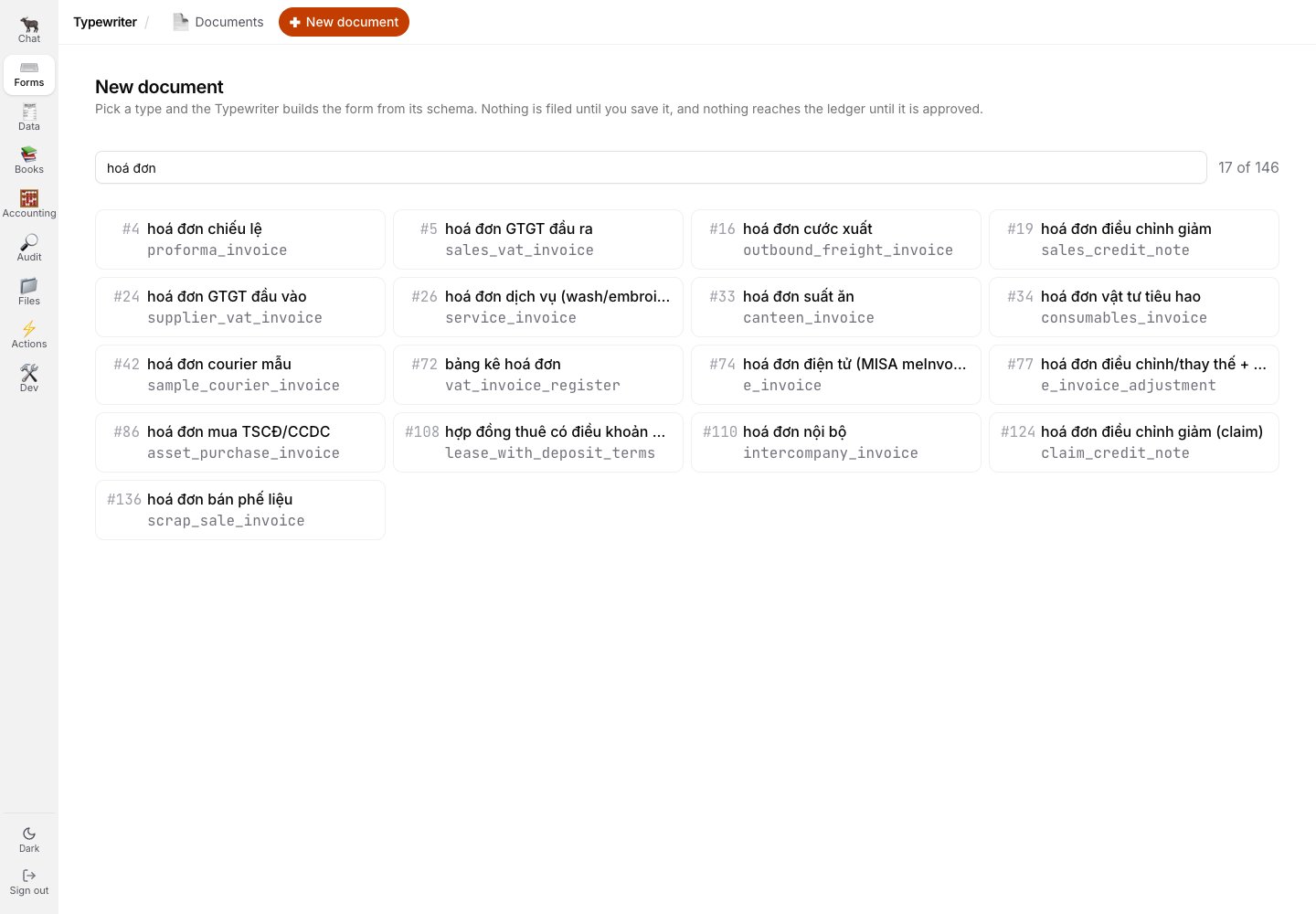
Filtered to 17. Search on name, key or number.
The registry holds exactly 146 records: 38 master, 48 transaction, 40 evidence and 20 adjustment
document types.
The picker is rendered from that registry rather than from a hand-maintained list, which is why it
cannot fall out of date with what the renderer can actually draw.
Fill the form, and watch the document build itself
The form on the left is generated from that document type’s schema. The panel on the right is the live preview: the real rendered document, updating as you type. The indicator reads Updating… then Up to date. Doc Type is pinned and disabled, because the type is decided by the route you came in on. Fields carry the schema’s own help text. A currency-bearing schema renders its authoritative uppercase ISO 4217 choices as a native select and keeps the document type’s own declared default; the product does not force every document to VND. An existing unsupported value remains visible for correction and blocks Save rather than silently changing to a default. The entity defaults to yours.Add line items
Where a document type has a repeating section, such as invoice lines, PO references or packing lines, it appears as a LINES block with an Add button. Each added item gets its own sub-form and a delete control, and appears immediately in the preview’s line table.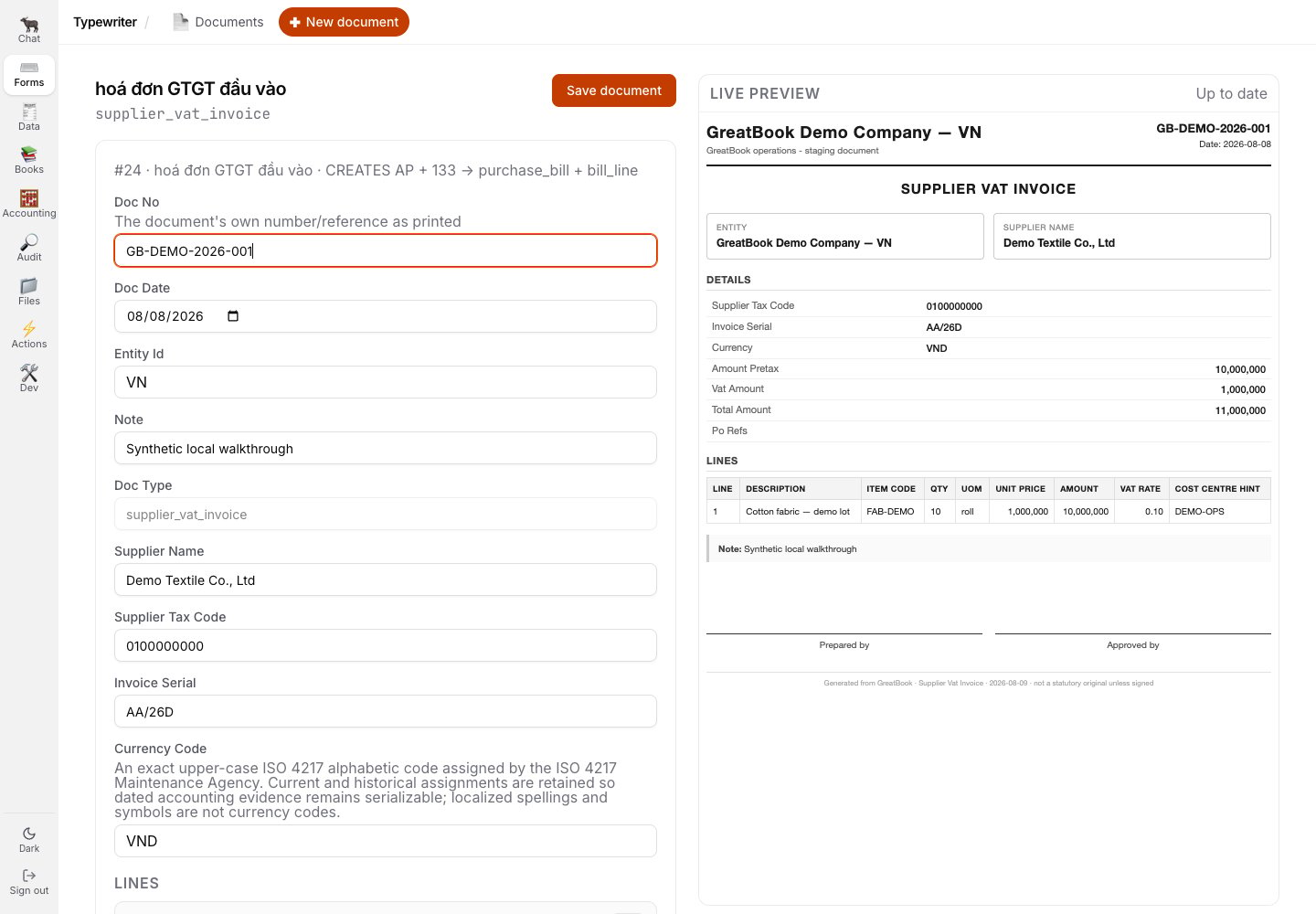
A schema-generated invoice form and the document it is building, side by side.
Save
The blank-document gate
Press Save document on a form you have not touched and it refuses, in words:This cannot be saved yet - this document is empty - fill in at least one field before saving it.
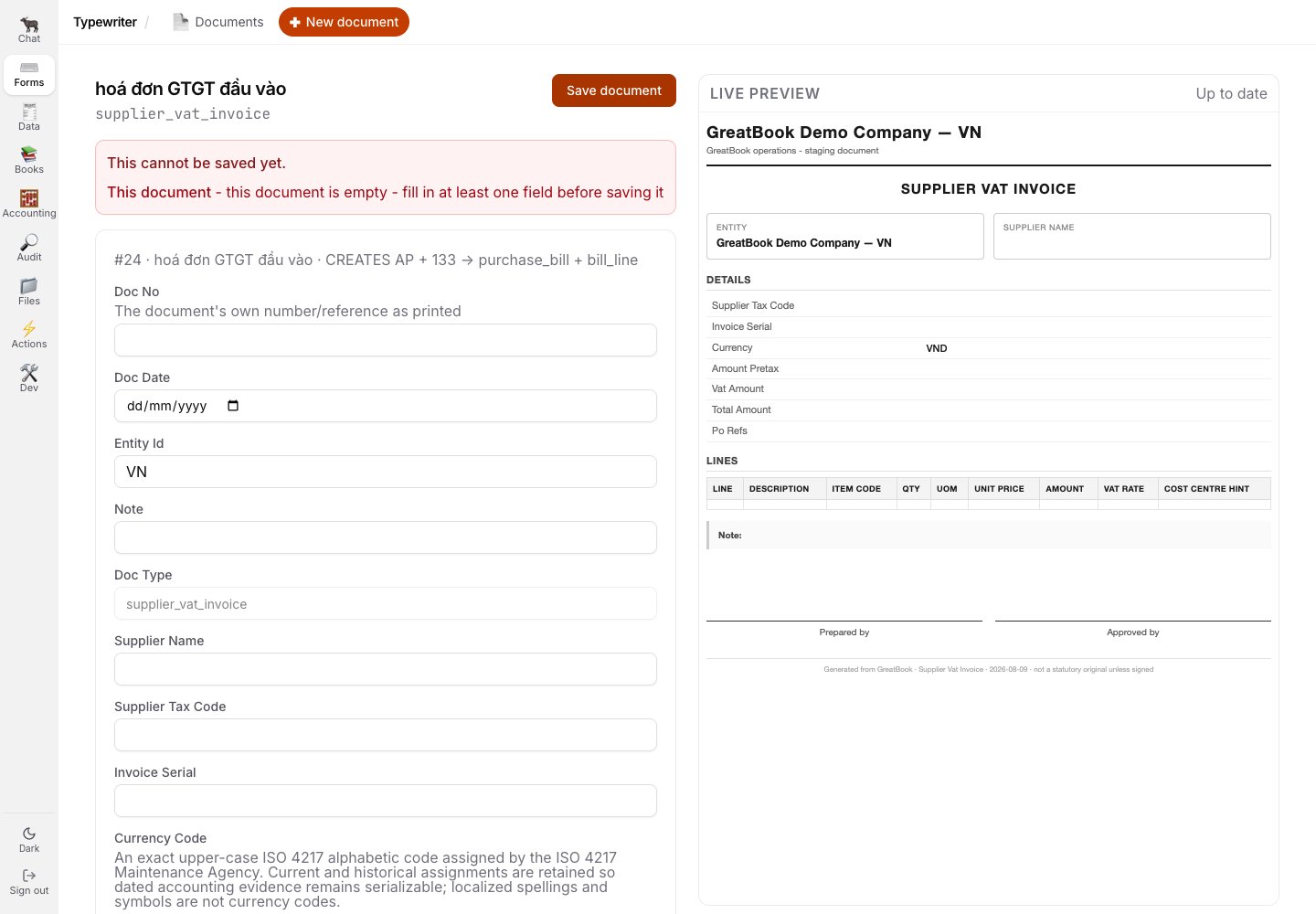
The blank-document gate refuses Save and gives the correction in the same screen.
Every one of the 146 schemas declares no required fields, so this is the check that stops an
empty shell reaching an approver.It is deliberately the only blanket rule.
A document type whose empty list is the finding - a stock count that matches the books, a dormant
account’s statement - still saves.
What just happened underneath
Save document does four things, in this order, all or nothing:1
Validate
Structural checks only: the doc type exists in the schema the renderer draws from, the payload is
an object, the request is within the size cap, and every key is a property that doc type declares.
2
Render the final PDF
Through the same render path the live preview used. One render path, so what you saw is what
gets stored.
3
Hash the exact bytes
SHA-256 of the bytes the renderer returned, not of the payload that produced them.
4
Store the PDF privately, then insert the row
Four statements in one function with one cleanup path, so a dropped connection cannot leave an
orphan PDF that nothing references.
doc_type, payload and supersedes_id.
Everything else - the org, the author, the status, the source, the PDF path, the hash, the document group and the version - is the server’s.
POST /typewriter/preview is the same render path with nothing persisted and nothing validated
beyond structure.
A partial or empty payload is a valid preview that renders blanks, never an error, because the
whole point is to show the document taking shape as it is typed.Where you land
You land on the document’s own page. That page is the document’s whole life in one screen: the embedded PDF, the SHA-256 under it, the approval trail, the handoff to the Clerk, and the exact stored values as JSON.What you cannot do here, and why
You created this document, so you cannot approve it. Another designated approver has to sign it off.
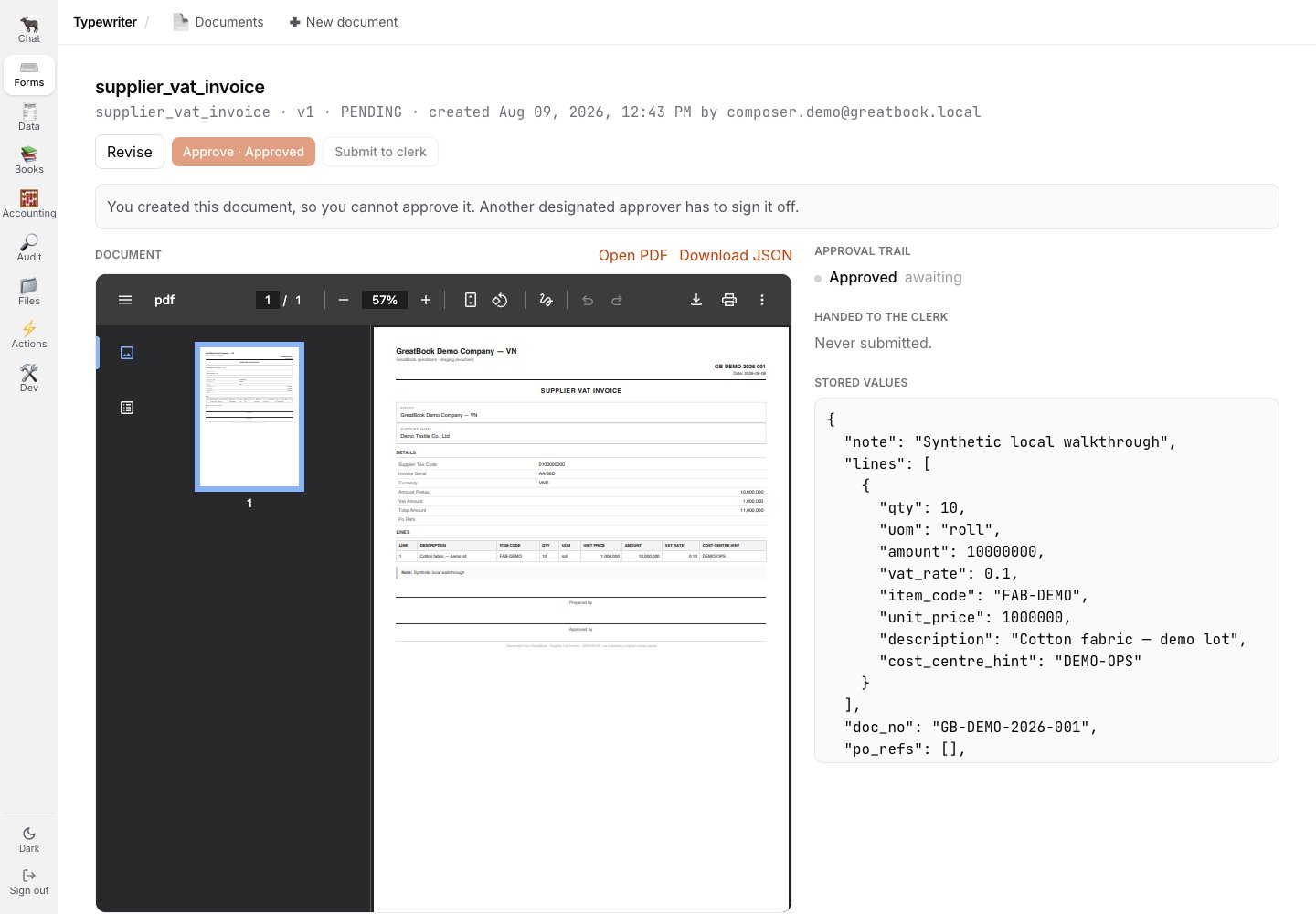
The author can inspect the saved PDF and stored values, but the approval rule stops them here.
The page title is the document type, not your document number.
The number is on the PDF and in the stored JSON on the right.
Next
2 · Sign it
A designated approver signs the document, and the approval is recorded against the hashed bytes.
Related
- Reference - deep links straight into the builder for one type
- Typewriter - how chat proposals, the builder, approval and Clerk handoff divide authority