

Agent workspaces
Picking an agent does not just open a chat box. It opens that agent’s workspace, a screen scoped to the one thing that agent does, with its own sub-nav across the top and an All agents & apps link back to the landing. The rail on the far left never moves while you are in one, and it highlights where you are: the two desks you use daily have their own rail entries, Data for the bookkeeping layer, where the Clerk works, and Audit for assurance across both layers, where the Auditor works. Those two names are the two layers, not two piles of paperwork.The sub-nav is per agent
Each agent exposes only the surfaces it actually has.The Bookkeeper is absent from the picker on purpose.
An agent that drafts journal entries and stops is not something you should be able to talk into a
different draft, and that is
the whole reason it has no chat surface.
Chat
The Chat tab is the conversation, and each agent opens with its own scope stated in the first person - what it does, and what it will not do. Under the greeting sits the composer, carrying the same Chat with picker as the landing. Switching agent there starts a fresh conversation rather than retargeting the one you are in, because a thread belongs to one agent for its whole life.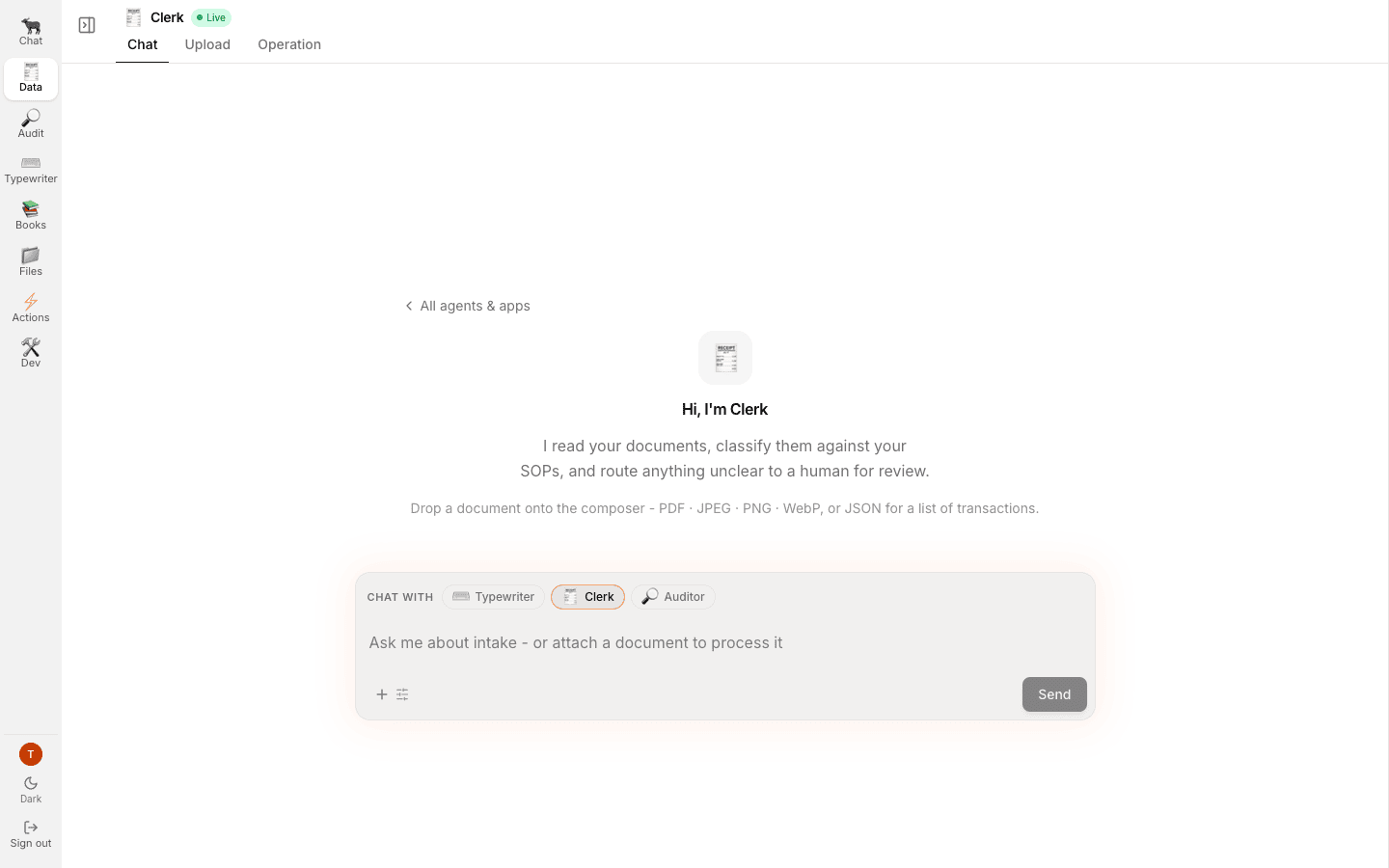
The Clerk's workspace on its Chat tab. The sub-nav is above the agent's own statement of scope.
Upload: the Clerk’s desk
This is the front door for documents that arrive rather than being composed, and it is the surface the upload lane guide walks. There are two drop zones, and the distinction between them is the important part.A spreadsheet is stored in Files but not parsed.
Export it as JSON for the list lane, or hand it to the Typewriter, which is the component whose
job is turning a list into schema-valid JSON.
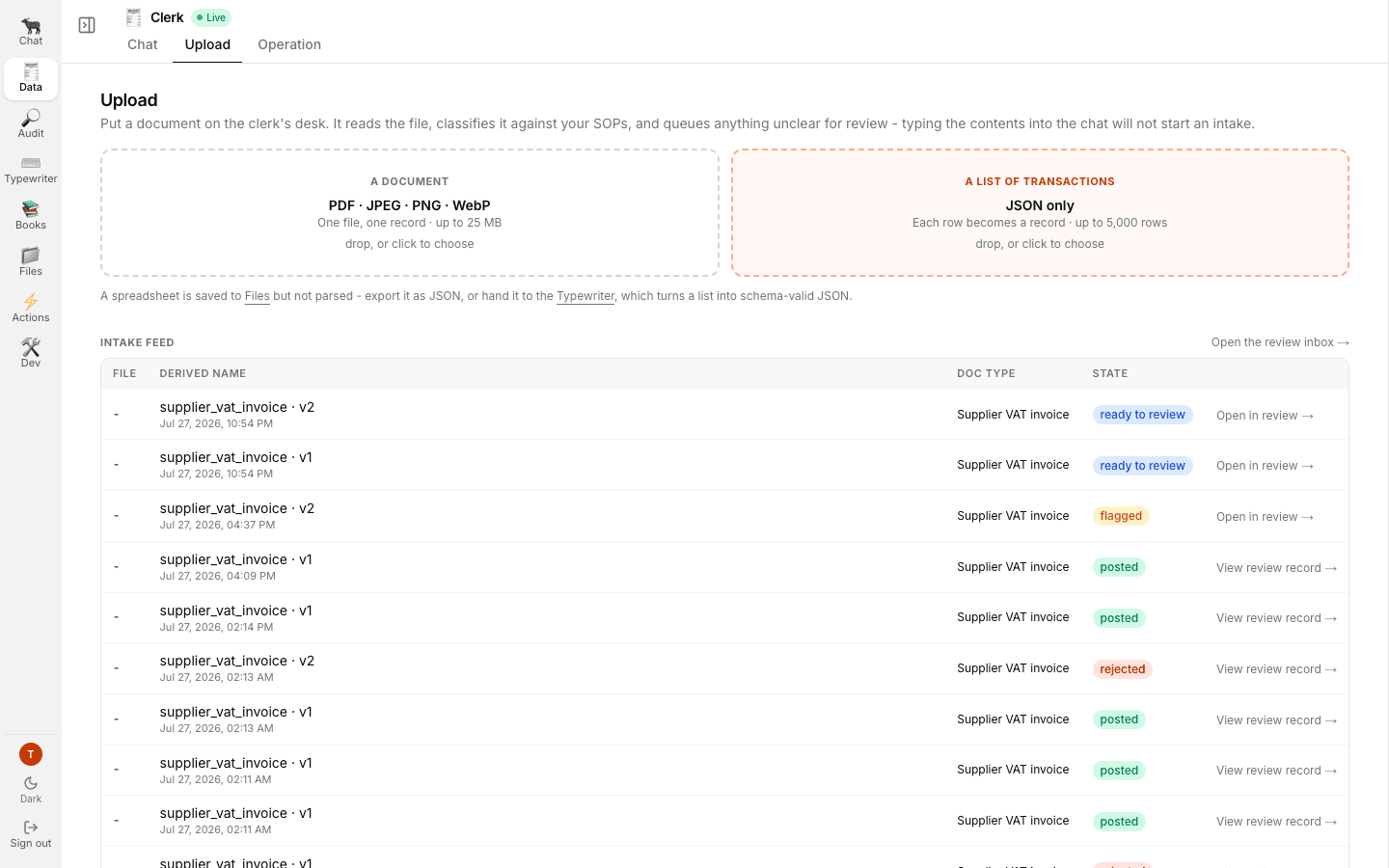
Upload. The left zone is one file, one record; the right zone is one row, one record.
Operation: the staging grid
Operation embeds the Teable staging base: 52 tables, grouped by flow.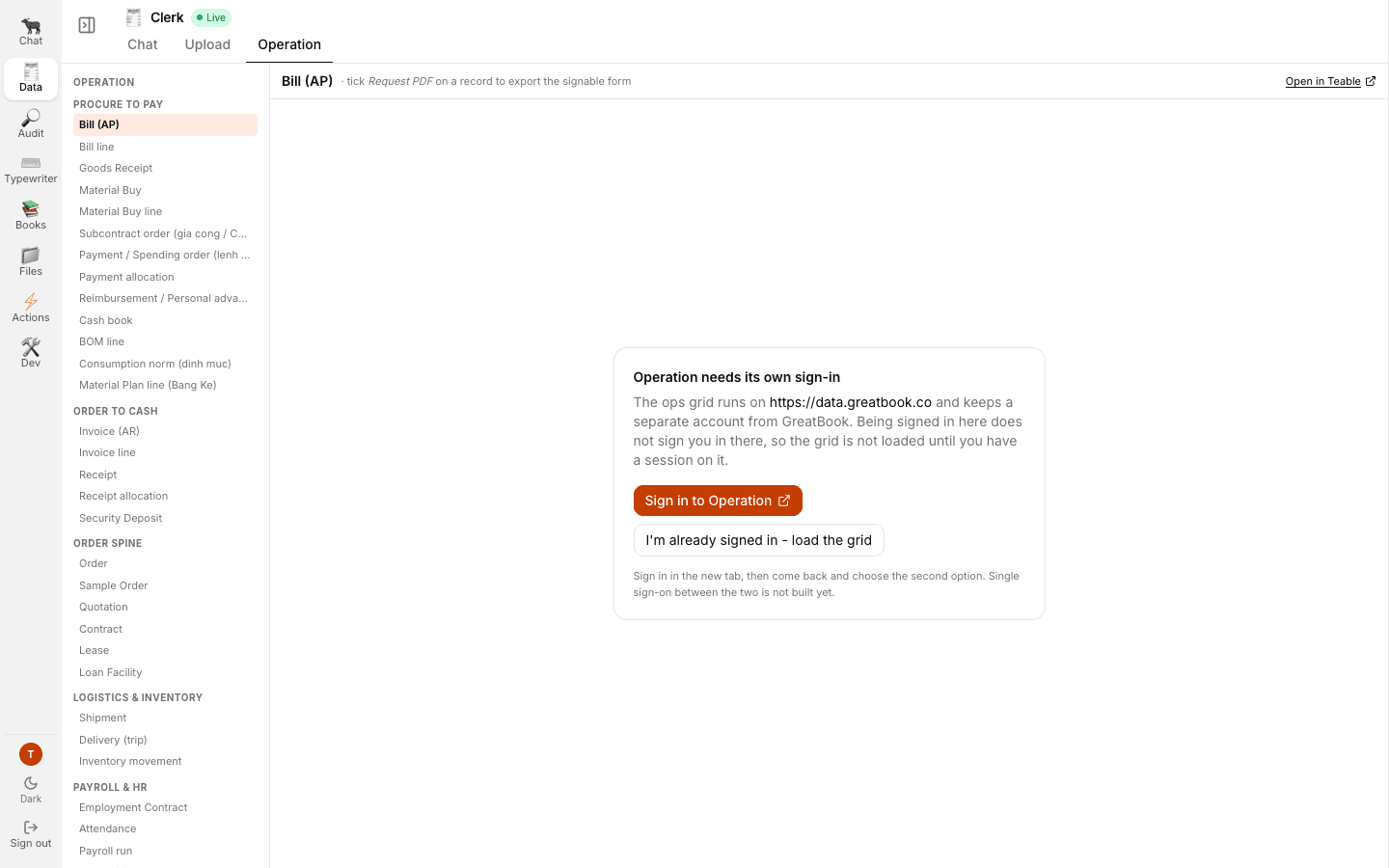
Operation. The flow groups on the left, the selected table embedded on the right.
Operation needs its own sign-in, and the page says so rather than showing you an empty grid.
The ops grid runs on
data.greatbook.co and keeps a separate account from GreatBook, so being
signed in here does not sign you in there.
Use Sign in to Operation ↗, which opens a new tab, then come back and choose
I’m already signed in - load the grid.
Single sign-on between the two is not built yet.Related
- Signing in and finding your way - the landing these workspaces open from
- The other lane: uploading a document - the Upload tab, walked end to end
- The agent org - what each of the five agents is allowed to do