> ## Documentation Index
> Fetch the complete documentation index at: https://docs.vinmake.com/llms.txt
> Use this file to discover all available pages before exploring further.
# 1 · Compose the document
> Open the Typewriter builder, pick one of 146 document types, fill the schema-driven form, and save.
# 1 · Compose the document
**What you are doing.** Turning data you have into a real, rendered, hashed document that a person can sign.
The Typewriter is not a template engine with a text box.
Each of the 146 document types is a declared schema, the form is generated from that schema, and the preview on the right is the actual rendered document rather than an approximation of it.
## Open the Typewriter
Click **Typewriter** in the left rail, or the **Typewriter** chip under *Apps* on the landing.
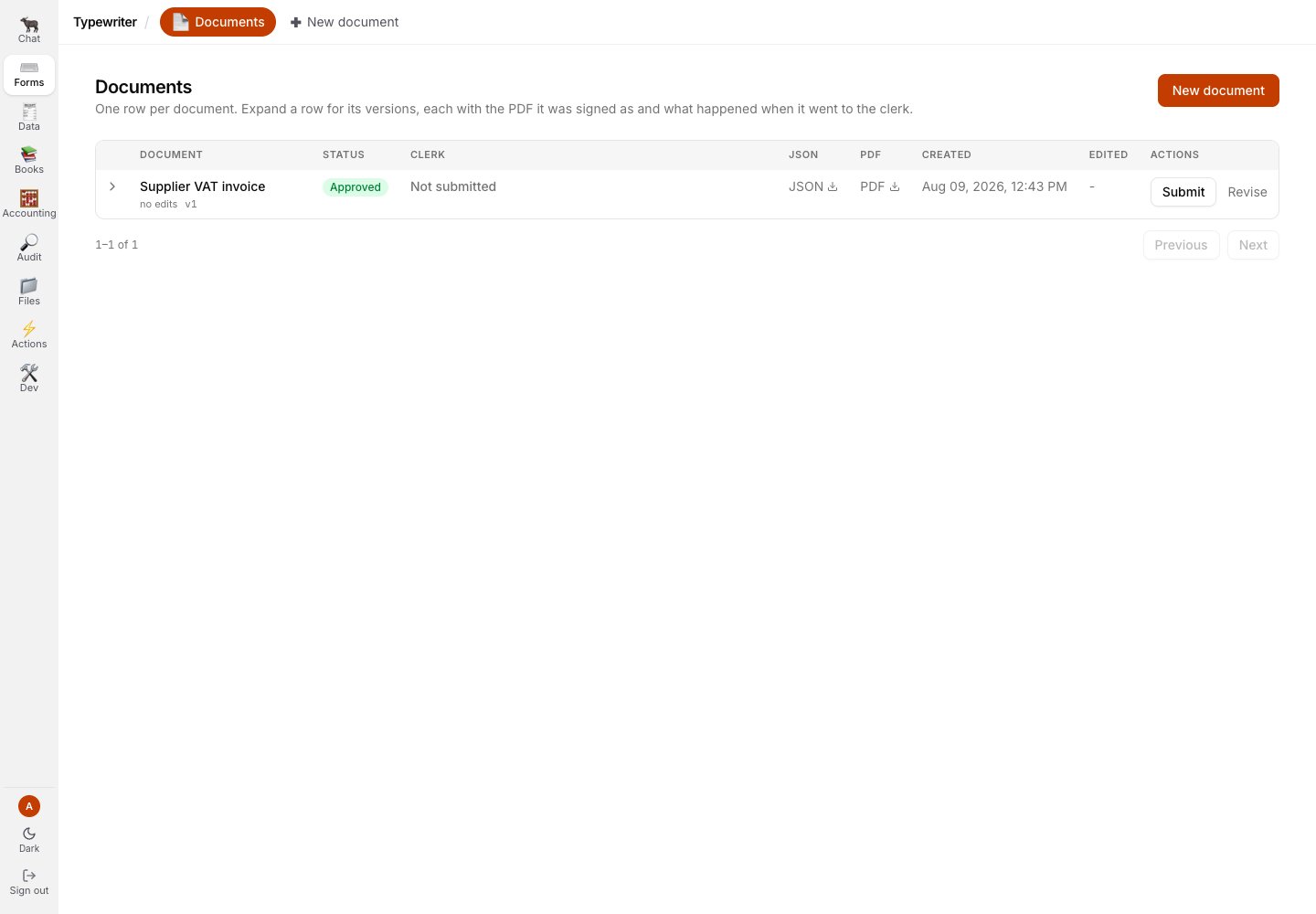
You land on **Documents**, one row per document, newest first.
Click **New document**, top right or in the sub-nav.
| Column | What it carries |
| -------------------- | --------------------------------------------------------------------- |
| **Document** | the type, the edit count, and the version |
| **Status** | your approval: *Awaiting approval* or *Approved* |
| **Clerk** | what happened when it was handed over, with the version and timestamp |
| **JSON / PDF** | download either, as stored |
| **Created / Edited** | when the head version was written, and when it was last revised |
| **Actions** | **Submit** or **Resubmit**, and **Revise** |
The chevron at the start of a row expands its **version history**: every version, the PDF it was
signed as, and what happened when that version went to the Clerk.
 **Resubmit** is not a second submission.
A document already handed over shows *Already in review … resolved to the existing intake row*: the
handoff is idempotent, so pressing it again lands you back on the row you already created rather
than creating a duplicate.
The **CLERK** column shows what happened at the moment of submission, not where the row got to
afterwards.
A document that is already posted and a document the Clerk rejected can both read *In review*.
Use **Books → Review** as the truth about status.
It fails safe: it under-reports progress, never over-reports it.
## Pick a document type
All 146 document types are here, numbered and named in Vietnamese with the machine key underneath (`supplier_vat_invoice`, `proof_of_delivery`, and so on).
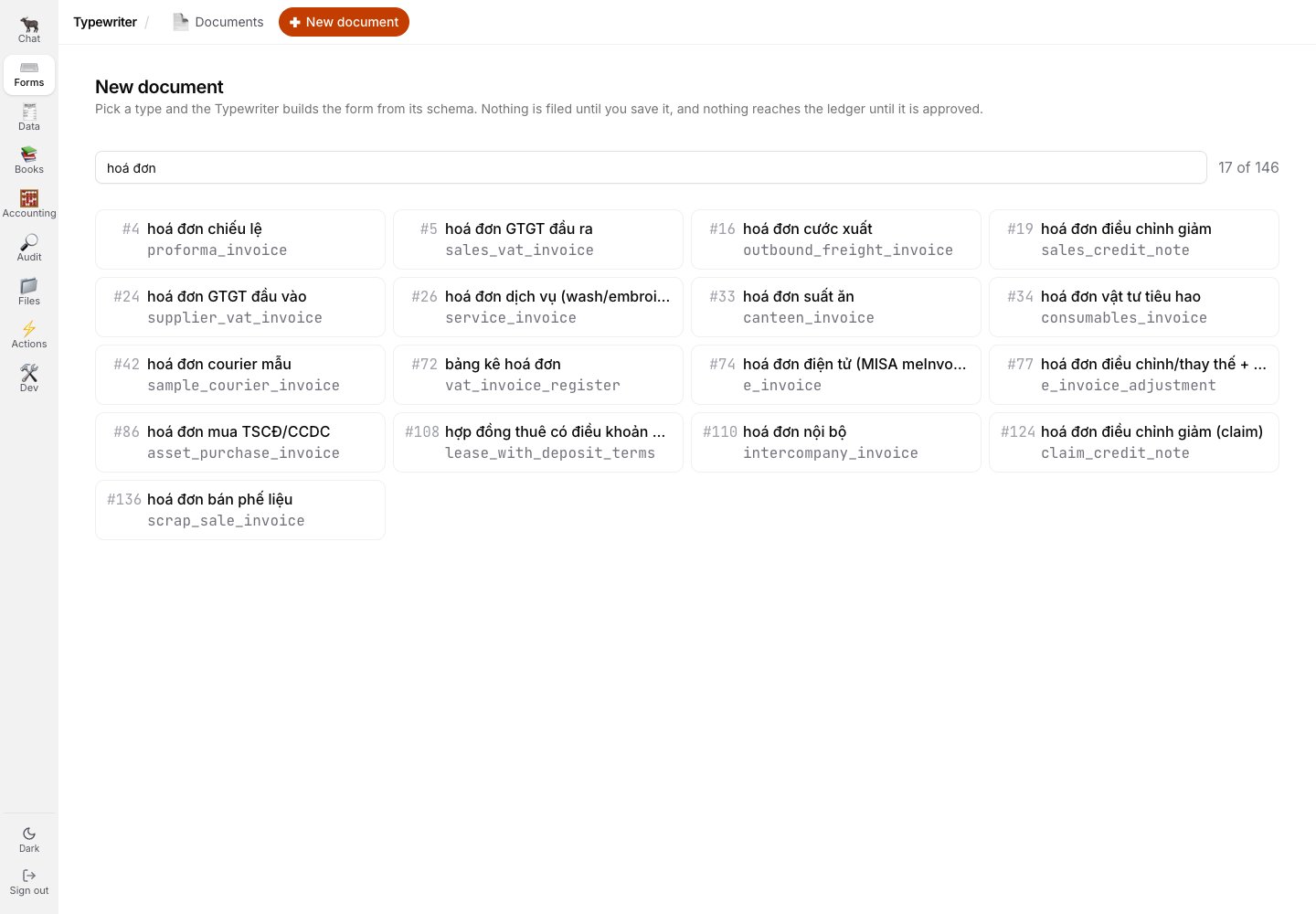
The counter on the right tells you how many match your filter.
Search matches the Vietnamese name, the key **and** the number.
Typing `hoá đơn` narrows 146 to 17; typing `#42` jumps straight to one.
**Resubmit** is not a second submission.
A document already handed over shows *Already in review … resolved to the existing intake row*: the
handoff is idempotent, so pressing it again lands you back on the row you already created rather
than creating a duplicate.
The **CLERK** column shows what happened at the moment of submission, not where the row got to
afterwards.
A document that is already posted and a document the Clerk rejected can both read *In review*.
Use **Books → Review** as the truth about status.
It fails safe: it under-reports progress, never over-reports it.
## Pick a document type
All 146 document types are here, numbered and named in Vietnamese with the machine key underneath (`supplier_vat_invoice`, `proof_of_delivery`, and so on).
The counter on the right tells you how many match your filter.
Search matches the Vietnamese name, the key **and** the number.
Typing `hoá đơn` narrows 146 to 17; typing `#42` jumps straight to one.
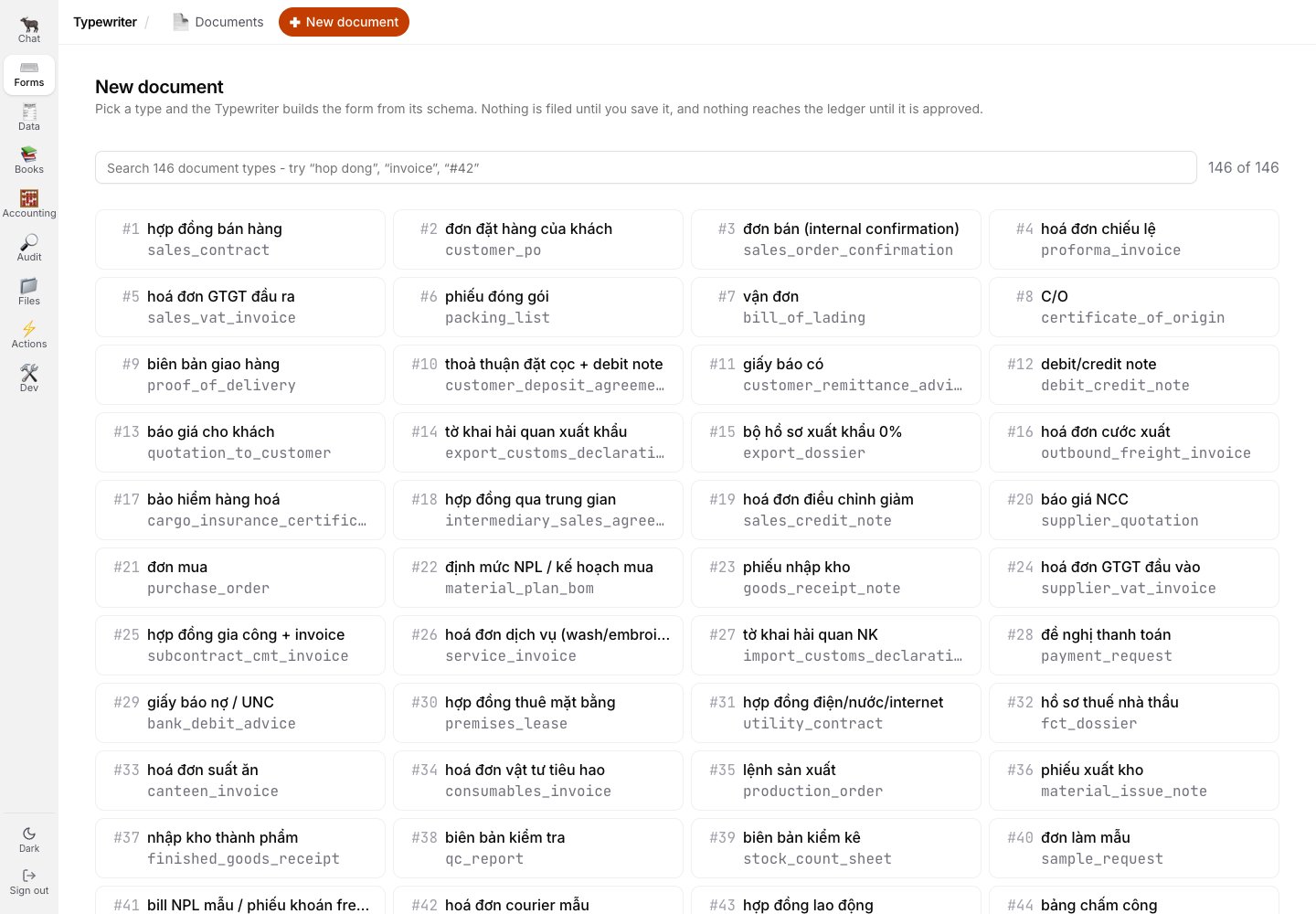
 The registry holds exactly **146** records: 38 master, 48 transaction, 40 evidence and 20 adjustment
document types.
The picker is rendered from that registry rather than from a hand-maintained list, which is why it
cannot fall out of date with what the renderer can actually draw.
## Fill the form, and watch the document build itself
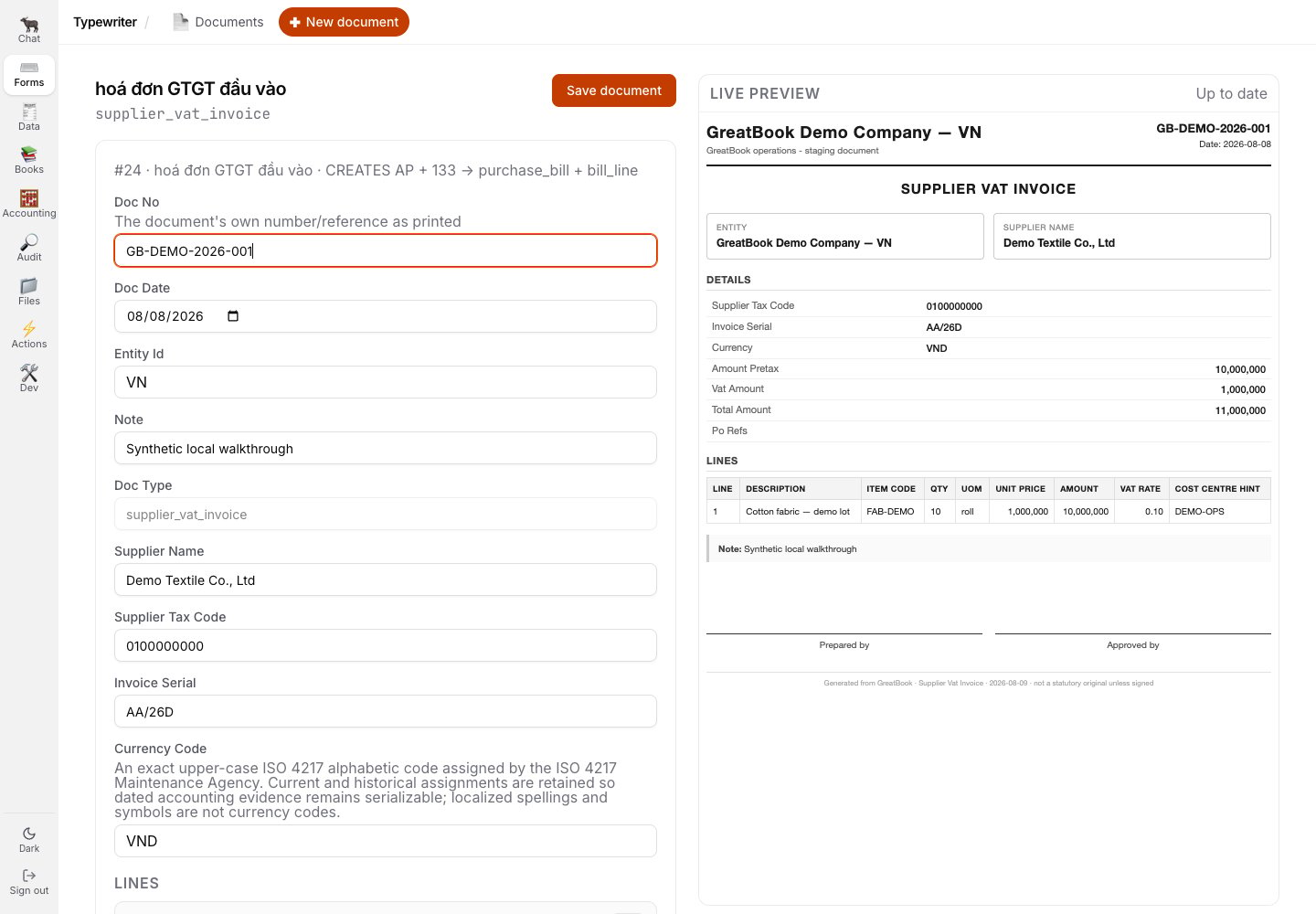
The form on the left is generated from that document type's schema.
The panel on the right is the **live preview**: the real rendered document, updating as you type.
The indicator reads *Updating…* then *Up to date*.
**Doc Type** is pinned and disabled, because the type is decided by the route you came in on.
Fields carry the schema's own help text.
A currency-bearing schema renders its authoritative uppercase ISO 4217 choices as a native select and keeps the document type's own declared default; the product does not force every document to VND.
An existing unsupported value remains visible for correction and blocks Save rather than silently changing to a default.
The entity defaults to yours.
### Add line items
Where a document type has a repeating section, such as invoice lines, PO references or packing lines, it appears as a **LINES** block with an **Add** button.
Each added item gets its own sub-form and a delete control, and appears immediately in the preview's line table.
The registry holds exactly **146** records: 38 master, 48 transaction, 40 evidence and 20 adjustment
document types.
The picker is rendered from that registry rather than from a hand-maintained list, which is why it
cannot fall out of date with what the renderer can actually draw.
## Fill the form, and watch the document build itself
The form on the left is generated from that document type's schema.
The panel on the right is the **live preview**: the real rendered document, updating as you type.
The indicator reads *Updating…* then *Up to date*.
**Doc Type** is pinned and disabled, because the type is decided by the route you came in on.
Fields carry the schema's own help text.
A currency-bearing schema renders its authoritative uppercase ISO 4217 choices as a native select and keeps the document type's own declared default; the product does not force every document to VND.
An existing unsupported value remains visible for correction and blocks Save rather than silently changing to a default.
The entity defaults to yours.
### Add line items
Where a document type has a repeating section, such as invoice lines, PO references or packing lines, it appears as a **LINES** block with an **Add** button.
Each added item gets its own sub-form and a delete control, and appears immediately in the preview's line table.
 **Only fields the document type declares are ever stored or drawn.**
If a value is not on the form, it is not part of that document.
The server refuses a payload carrying undeclared fields rather than silently keeping something the
approver would never see on the page.
This is an integrity control, not a validation nicety, and the reasoning is on
[the composition page](/greatbook/capabilities/composition-and-rendering).
The short version: the renderer draws only declared fields, so an undeclared key is **invisible on
the PDF an approver signs** while surviving verbatim into the queue the Bookkeeper reads.
A payload rendering as 100 could otherwise post a very different number under a real approver's name.
## Save
### The blank-document gate
Press **Save document** on a form you have not touched and it refuses, in words:
> This cannot be saved yet - this document is empty - fill in at least one field before saving it.
**Only fields the document type declares are ever stored or drawn.**
If a value is not on the form, it is not part of that document.
The server refuses a payload carrying undeclared fields rather than silently keeping something the
approver would never see on the page.
This is an integrity control, not a validation nicety, and the reasoning is on
[the composition page](/greatbook/capabilities/composition-and-rendering).
The short version: the renderer draws only declared fields, so an undeclared key is **invisible on
the PDF an approver signs** while surviving verbatim into the queue the Bookkeeper reads.
A payload rendering as 100 could otherwise post a very different number under a real approver's name.
## Save
### The blank-document gate
Press **Save document** on a form you have not touched and it refuses, in words:
> This cannot be saved yet - this document is empty - fill in at least one field before saving it.
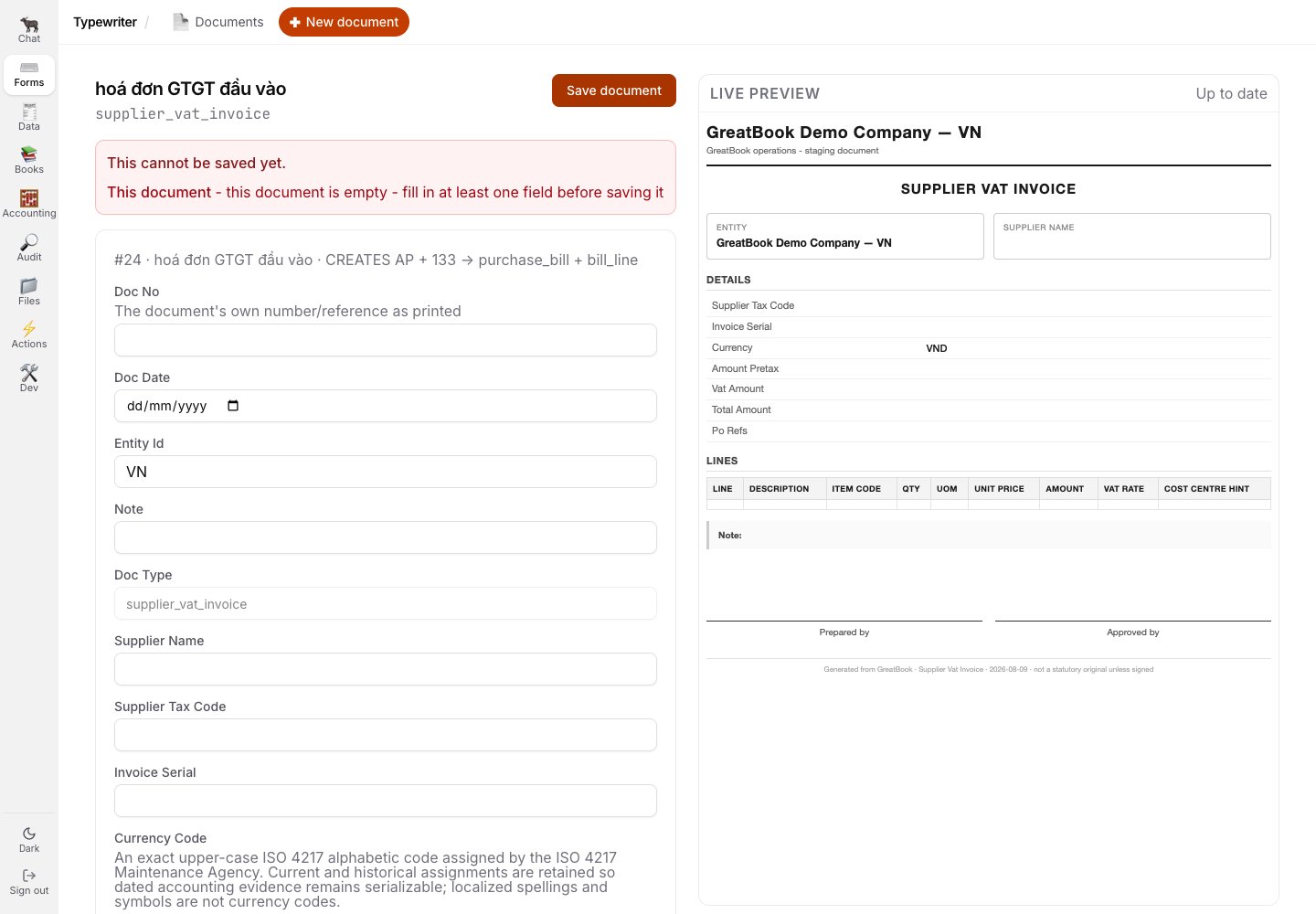 Every one of the 146 schemas declares **no required fields**, so this is the check that stops an
empty shell reaching an approver.
It is deliberately the only blanket rule.
A document type whose empty list is the finding - a stock count that matches the books, a dormant
account's statement - still saves.
### What just happened underneath
**Save document** does four things, in this order, all or nothing:
Structural checks only: the doc type exists in the schema the renderer draws from, the payload is
an object, the request is within the size cap, and every key is a property that doc type declares.
Through the same render path the live preview used. One render path, so what you saw is what
gets stored.
SHA-256 of the bytes the renderer returned, not of the payload that produced them.
Four statements in one function with one cleanup path, so a dropped connection cannot leave an
orphan PDF that nothing references.
Every provenance column on the row is set **server-side** from the verified session.
The client may decide exactly three things: `doc_type`, `payload` and `supersedes_id`.
Everything else - the org, the author, the status, the source, the PDF path, the hash, the document group and the version - is the server's.
```http theme={null}
POST /typewriter/documents
X-WorthState-Org-Id:
Content-Type: application/json
{
"doc_type": "supplier_vat_invoice",
"payload": {
"doc_no": "TW-GUIDE-A1",
"doc_date": "2026-07-24",
"currency": "VND",
"supplier_name": "Thanh Long Textile Co., Ltd",
"supplier_tax_code": "0101234567",
"invoice_serial": "AA/26E",
"amount_pretax": 1000000,
"vat_amount": 100000,
"total_amount": 1100000,
"lines": [
{
"item_code": "FAB-TW-200",
"description": "Cotton twill fabric, 200gsm",
"qty": 500,
"uom": "m",
"unit_price": 2000,
"vat_rate": 10,
"amount": 1000000
}
]
}
}
```
```json theme={null}
201 Created
{
"document": {
"id": "",
"document_group_id": "",
"version": 1,
"doc_type": "supplier_vat_invoice",
"status": "pending",
"pdf_hash": "",
"source": "typewriter"
}
}
```
`POST /typewriter/preview` is the same render path with nothing persisted and nothing validated
beyond structure.
A partial or empty payload is a **valid** preview that renders blanks, never an error, because the
whole point is to show the document taking shape as it is typed.
## Where you land
You land on the document's own page.
That page is the document's whole life in one screen: the embedded PDF, the SHA-256 under it, the approval trail, the handoff to the Clerk, and the exact stored values as JSON.
## What you cannot do here, and why
> You created this document, so you cannot approve it. Another designated approver has to sign it off.
Every one of the 146 schemas declares **no required fields**, so this is the check that stops an
empty shell reaching an approver.
It is deliberately the only blanket rule.
A document type whose empty list is the finding - a stock count that matches the books, a dormant
account's statement - still saves.
### What just happened underneath
**Save document** does four things, in this order, all or nothing:
Structural checks only: the doc type exists in the schema the renderer draws from, the payload is
an object, the request is within the size cap, and every key is a property that doc type declares.
Through the same render path the live preview used. One render path, so what you saw is what
gets stored.
SHA-256 of the bytes the renderer returned, not of the payload that produced them.
Four statements in one function with one cleanup path, so a dropped connection cannot leave an
orphan PDF that nothing references.
Every provenance column on the row is set **server-side** from the verified session.
The client may decide exactly three things: `doc_type`, `payload` and `supersedes_id`.
Everything else - the org, the author, the status, the source, the PDF path, the hash, the document group and the version - is the server's.
```http theme={null}
POST /typewriter/documents
X-WorthState-Org-Id:
Content-Type: application/json
{
"doc_type": "supplier_vat_invoice",
"payload": {
"doc_no": "TW-GUIDE-A1",
"doc_date": "2026-07-24",
"currency": "VND",
"supplier_name": "Thanh Long Textile Co., Ltd",
"supplier_tax_code": "0101234567",
"invoice_serial": "AA/26E",
"amount_pretax": 1000000,
"vat_amount": 100000,
"total_amount": 1100000,
"lines": [
{
"item_code": "FAB-TW-200",
"description": "Cotton twill fabric, 200gsm",
"qty": 500,
"uom": "m",
"unit_price": 2000,
"vat_rate": 10,
"amount": 1000000
}
]
}
}
```
```json theme={null}
201 Created
{
"document": {
"id": "",
"document_group_id": "",
"version": 1,
"doc_type": "supplier_vat_invoice",
"status": "pending",
"pdf_hash": "",
"source": "typewriter"
}
}
```
`POST /typewriter/preview` is the same render path with nothing persisted and nothing validated
beyond structure.
A partial or empty payload is a **valid** preview that renders blanks, never an error, because the
whole point is to show the document taking shape as it is typed.
## Where you land
You land on the document's own page.
That page is the document's whole life in one screen: the embedded PDF, the SHA-256 under it, the approval trail, the handoff to the Clerk, and the exact stored values as JSON.
## What you cannot do here, and why
> You created this document, so you cannot approve it. Another designated approver has to sign it off.
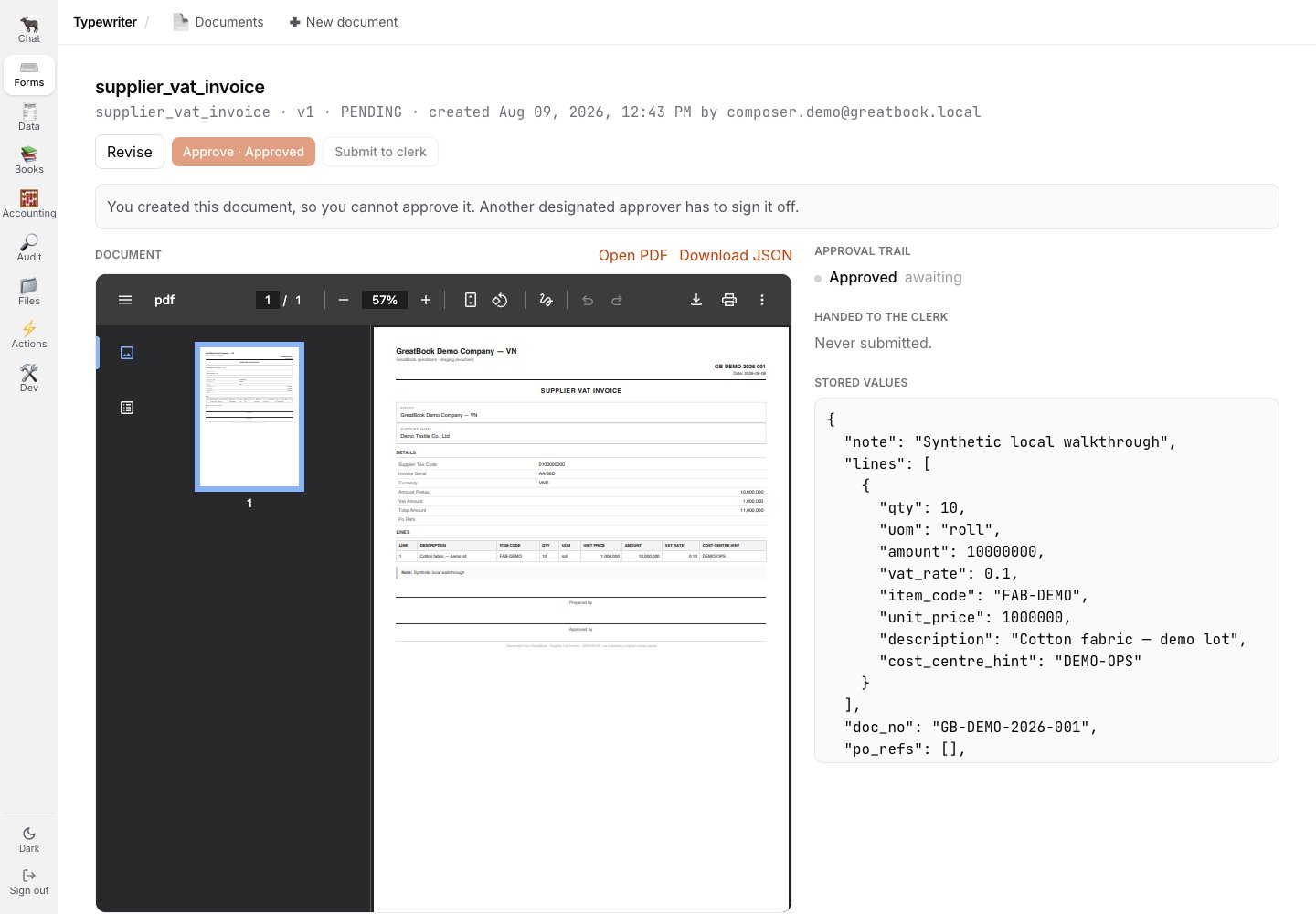 **Maker is not checker, and it is enforced rather than advised.**
The author of a document can never approve it.
The button is disabled with the reason spelled out, and the server refuses the request with a 409 even if the button were forced.
The reason it is written as a rule rather than as a disabled button is that a disabled button is a UI convention, and a UI convention is not a control.
The server is the control; the button just tells you the truth early.
The page title is the document **type**, not your document number.
The number is on the PDF and in the stored JSON on the right.
## Next
A designated approver signs the document, and the approval is recorded against the hashed bytes.
## Related
* [Reference](/greatbook/guides/reference) - deep links straight into the builder for one type
* [Typewriter](/greatbook/features/typewriter) - how chat proposals, the builder, approval and Clerk handoff divide authority
**Maker is not checker, and it is enforced rather than advised.**
The author of a document can never approve it.
The button is disabled with the reason spelled out, and the server refuses the request with a 409 even if the button were forced.
The reason it is written as a rule rather than as a disabled button is that a disabled button is a UI convention, and a UI convention is not a control.
The server is the control; the button just tells you the truth early.
The page title is the document **type**, not your document number.
The number is on the PDF and in the stored JSON on the right.
## Next
A designated approver signs the document, and the approval is recorded against the hashed bytes.
## Related
* [Reference](/greatbook/guides/reference) - deep links straight into the builder for one type
* [Typewriter](/greatbook/features/typewriter) - how chat proposals, the builder, approval and Clerk handoff divide authority